
Help Center
Short videos and step-by-step guides for the things members do most. Each video comes in a desktop and a phone version; the right one plays for your screen, with captions and a transcript.
For members
For the people we refer
For staff
Sign up for an event
Read the transcript
Here's how to volunteer
at a Sober AF event. Log
in first, so your details
fill in for you.
Not logged in? You
can still sign up, with a
few more questions about yourself.
Open the event, and under
Get involved, choose Volunteer.
The sign-up form opens
right on the page.
Your email is already filled
in. Add your phone number,
then choose Next.
Sign in the box with your
mouse, or with your finger
on a phone. Then tick
the box to agree to the code
of conduct.
Then choose Submit application.
That's it. Your application
is in. It isn't a confirmation
yet: our events team
reviews every application
and will be in touch either
way, and you'll get an email that
we received it.
- Go to Events and open the event you want to help with.
- Scroll to Get involved and choose Volunteer. The sign-up form opens right there, already set to that event.
- Check your email, add your phone number and choose Next. If you are logged in, what your profile already holds is filled in for you; if you are not, you will also be asked a few questions about yourself.
- Rate the six short questions about the event, sign with your mouse or finger, and tick the agreement.
- Choose Submit application. You will get an email confirming we received it, and our events team follows up once you are approved.
Log an interaction or a referral
Read the transcript
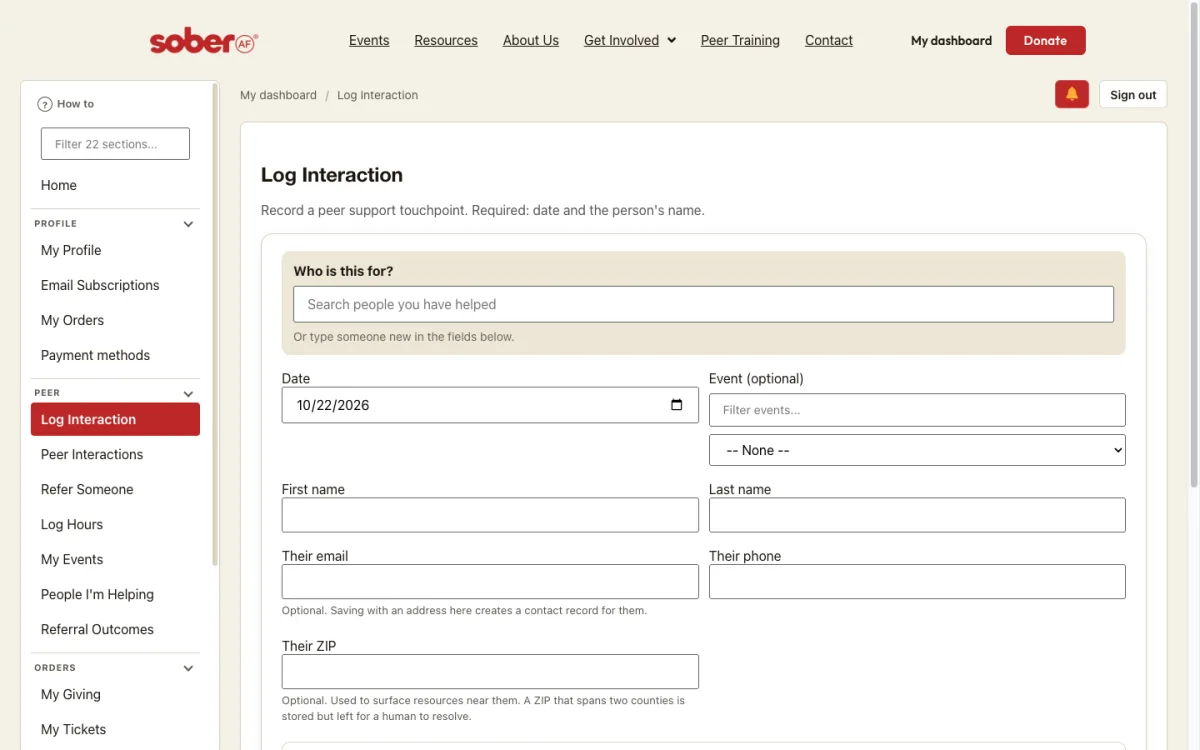
Here's how to log a conversation
with someone you're helping and
refer them to a program.
Start by logging in.
In your Dashboard, under
Peer, choose Log Interaction.
The date is already
set. Enter the person's
name and any contact details
they shared.
add the services you talked
about and a short note.
if they agreed to be followed
up with tick the consent
box. Then choose Save
Interaction.
you land on programs for
that person. Choose Refer
on the one that fits.
Confirm they agreed to hear
from us, add a note for them
if you like and choose
Send referral.
They'll get an email with
the program's details.
The program itself isn't
emailed. You'll find them
later under "People I'm Helping".
- Log in and open your dashboard. Under Peer, choose Log Interaction.
- Enter the date, the person’s name and any contact details they shared, the services you talked about, and your notes.
- If they agreed to be followed up with, tick Consent recorded to follow up with resources. Then choose Save interaction.
- You land on Refer Someone, showing programs for that person. Choose Refer on a program, add a note if you like, and choose Send referral.
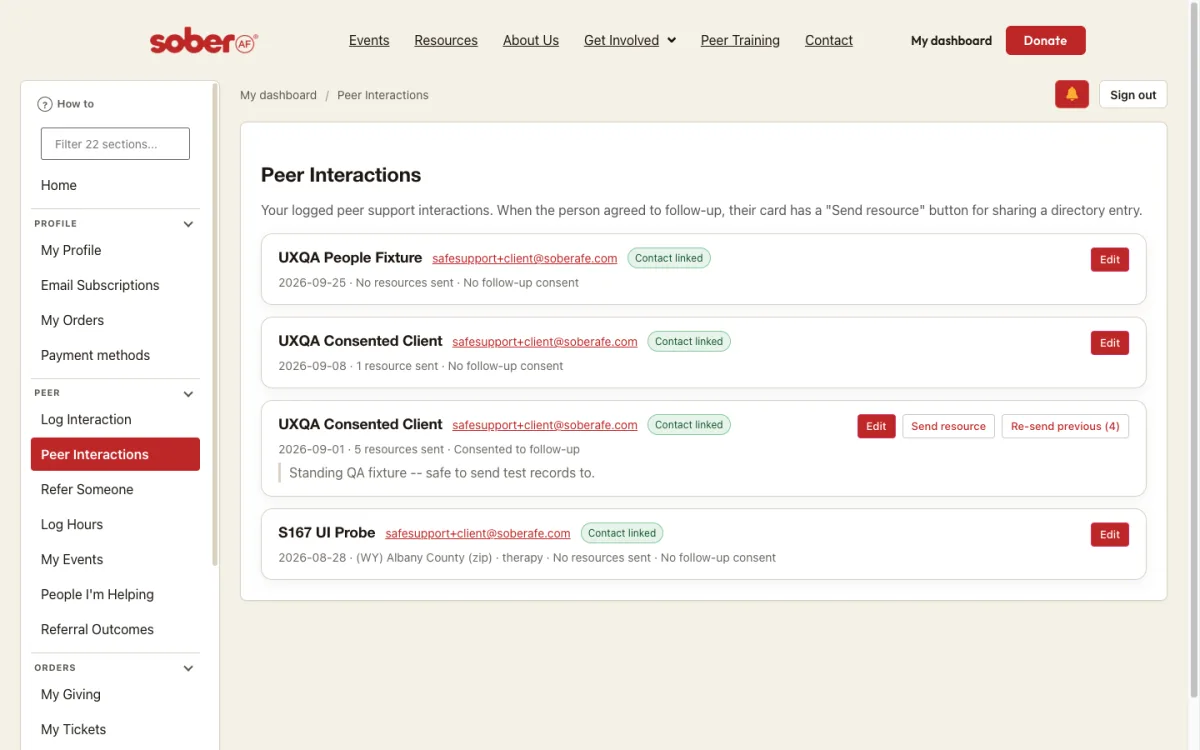
The person you referred receives an email with the program’s details; the program itself is not emailed. Your referrals are listed under Referral Outcomes and People I’m Helping.
Log your peer hours
Read the transcript
Here's how to log your peer
hours. Open log hours from
your dashboard or go
straight to soberafe.com/log-hours
and log in.
Enter the organization
you worked with and your supervisor's
name and contact details.
Enter the first and last day
you worked and your total
hours for that period.
Choose the type of work and
the county you worked in,
then describe what you did.
If these hours were with
Sober AF, tick this box
and pick the events.
then choose "Submit".
Your hours are logged.
You'll find them under My Hours
in your dashboard, where
you can edit or
remove them.
- Log in and open your dashboard. Under Peer, choose Log Hours — or go straight to soberafe.com/log-hours/.
- Enter the organization you worked with and your supervisor’s details.
- Enter the date, your hours, what you did and the county you worked in.
- If the hours were with S.AF.E, tick Log Hours with S.AF.E and pick the events.
- Agree to the policy and submit. Your entries appear under My Hours, where you can edit or remove them.
Keep track of the people you’re helping
Read the transcript
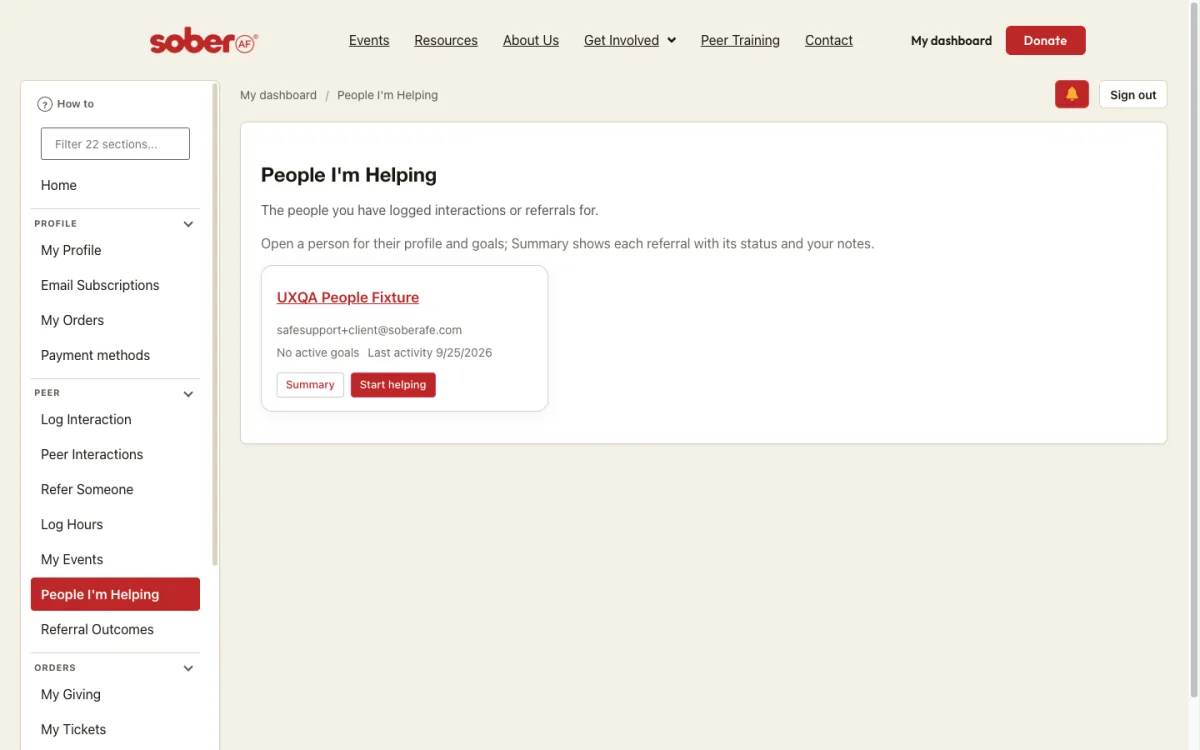
Here's how to keep track of the people
you're helping. Start by logging
in.
In your dashboard, under
Peer, choose People I'm
Helping.
Everyone you've logged or referred
has a card here. Choose
a name to open their
record.
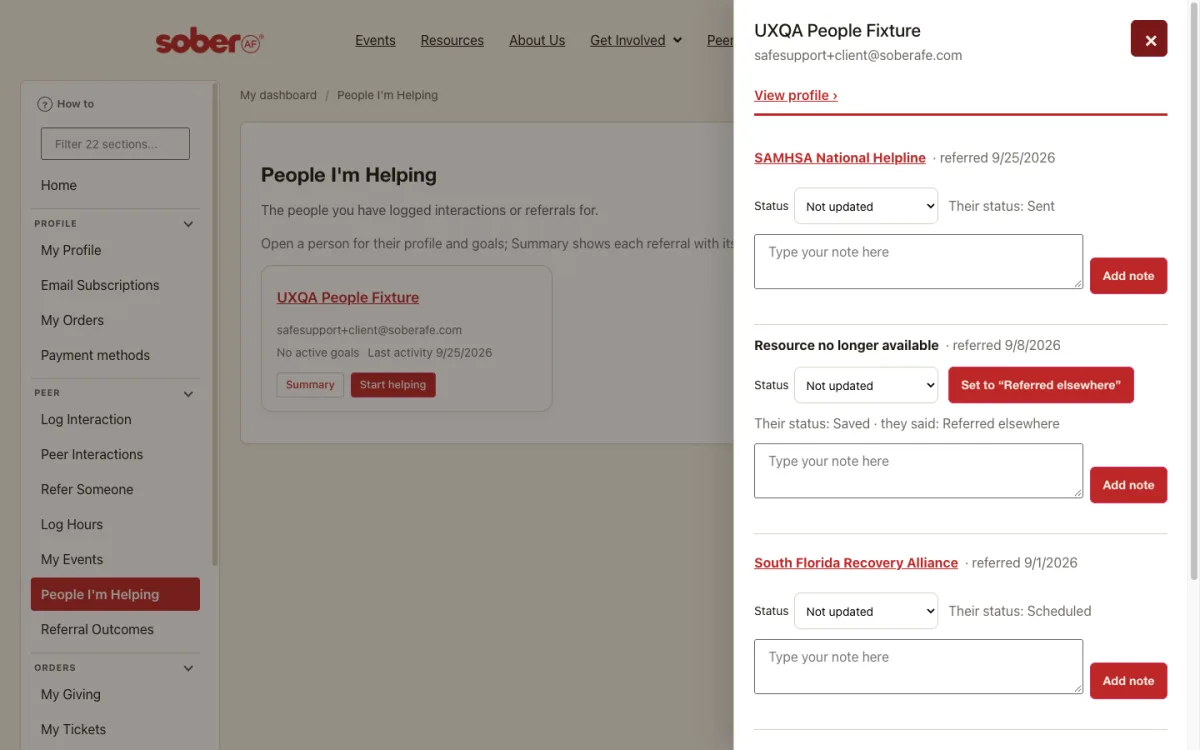
Their personal info comes
first. To track what they're
working toward, choose
Add goal, pick a type,
describe it, and save.
Under Referrals and notes,
set where things stand with
each program they were referred
to.
Add a note to remember what
happened. Only you can see
your notes.
That's it. Your goals,
statuses and notes are saved
on their record, ready for next
time.
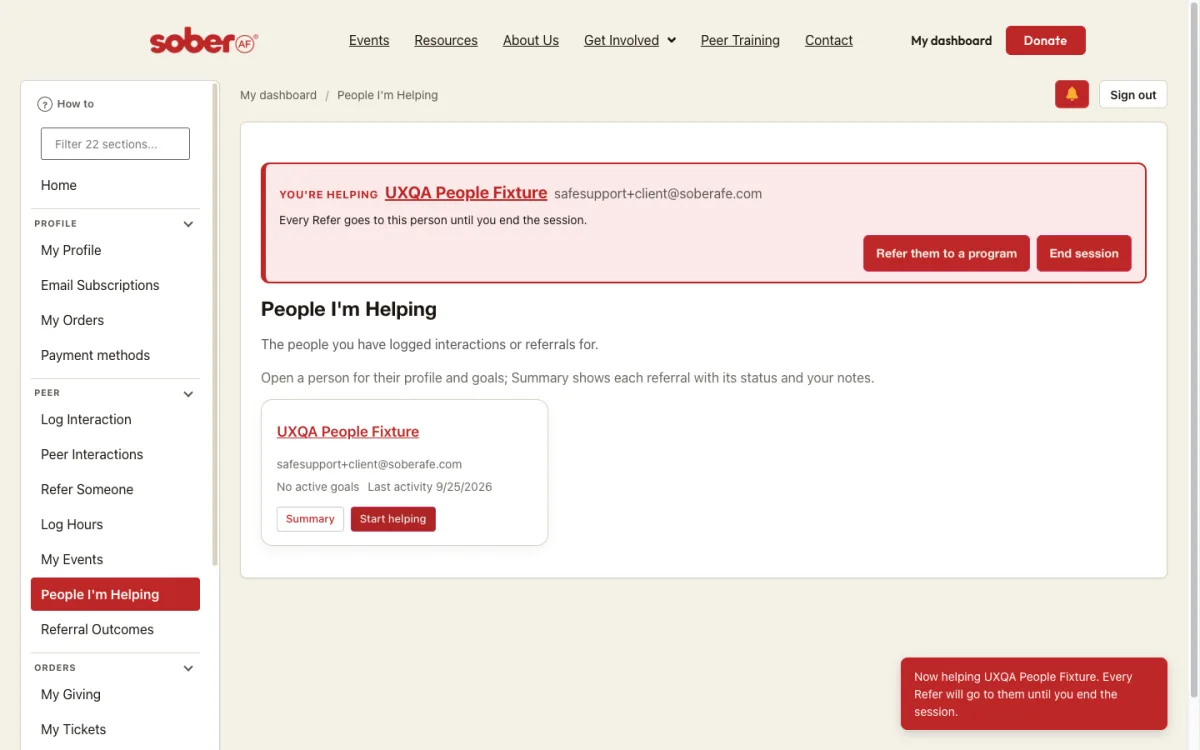
- Log in and open your dashboard. Under Peer, choose People I’m Helping. Everyone you have logged an interaction with or referred has a card there.
- Choose a person’s name to open their record. Their personal info comes first; Edit personal info changes only your own record of them, never their account.
- Under Goals, choose Add goal, pick the kind of goal, describe it and choose Save goal. Change a goal’s status as they make progress.
- Under Referrals and notes, set each referral’s Status to where things stand, and add a note to remember what happened. Only you can see your notes.
Find a resource
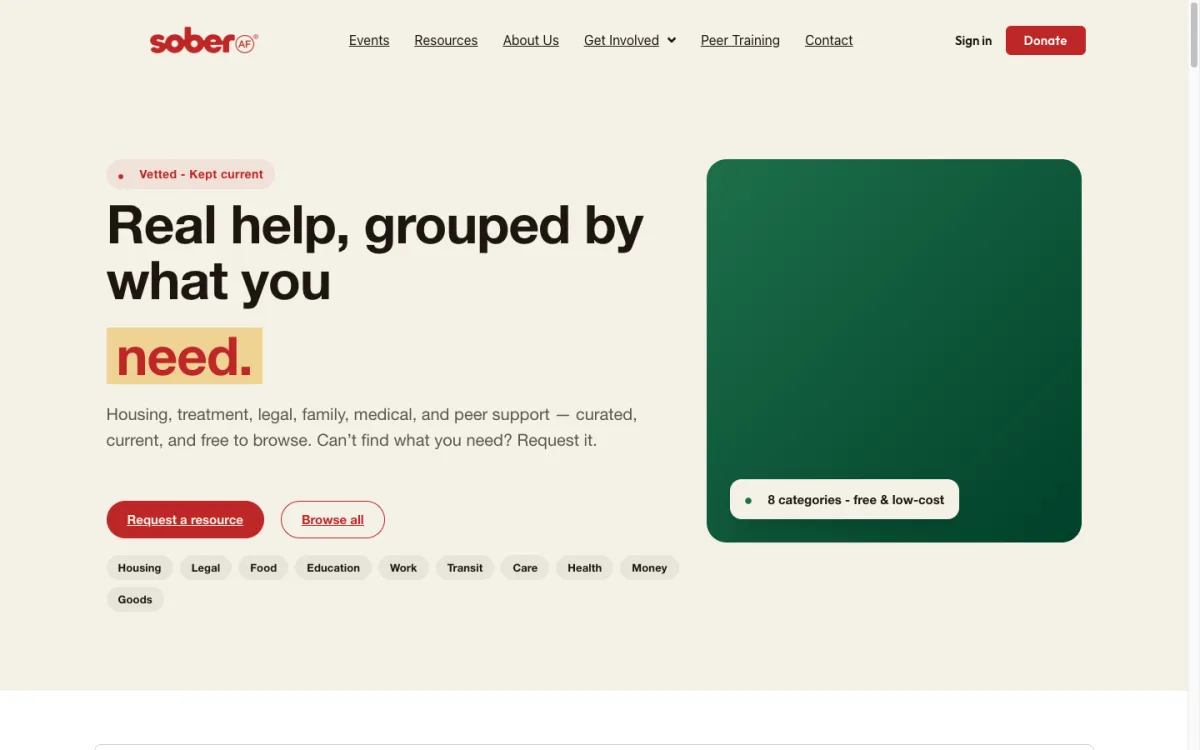
- Go to Resources. The directory opens on a search box with the eight categories under it.
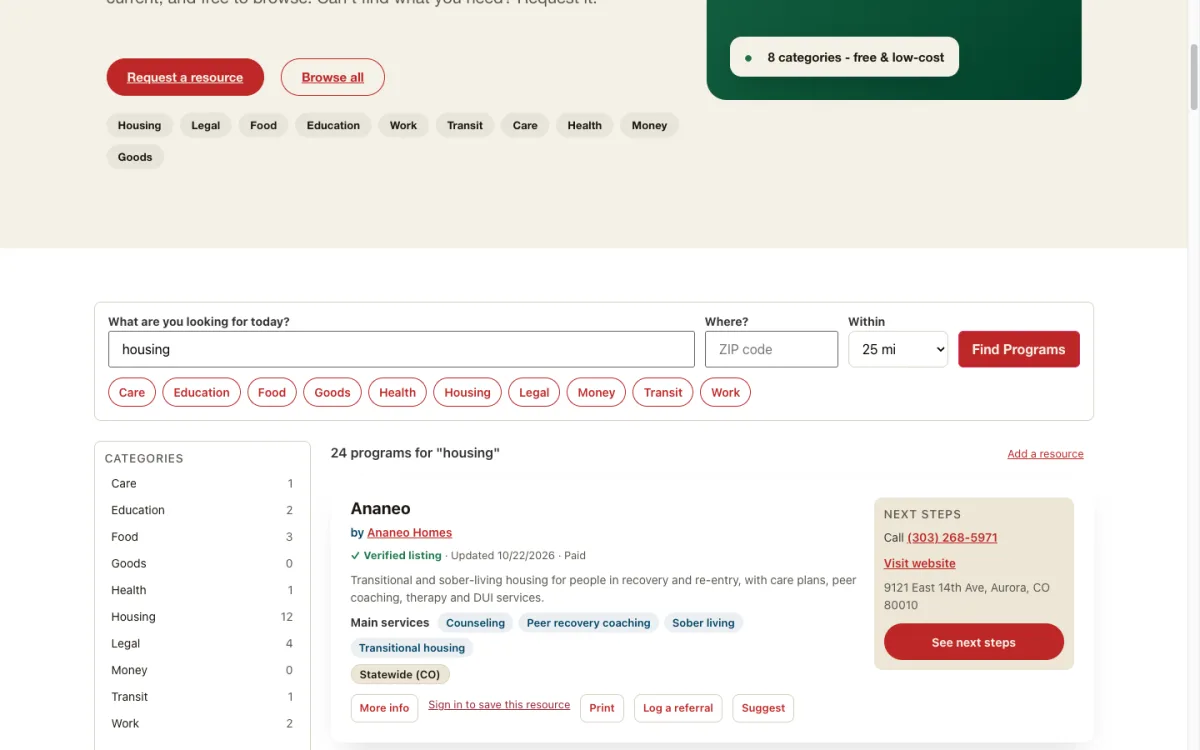
- Type what you need (housing, food, counseling) and choose Find Programs. Add a ZIP code and a distance to keep results close to home; national programs are always included.
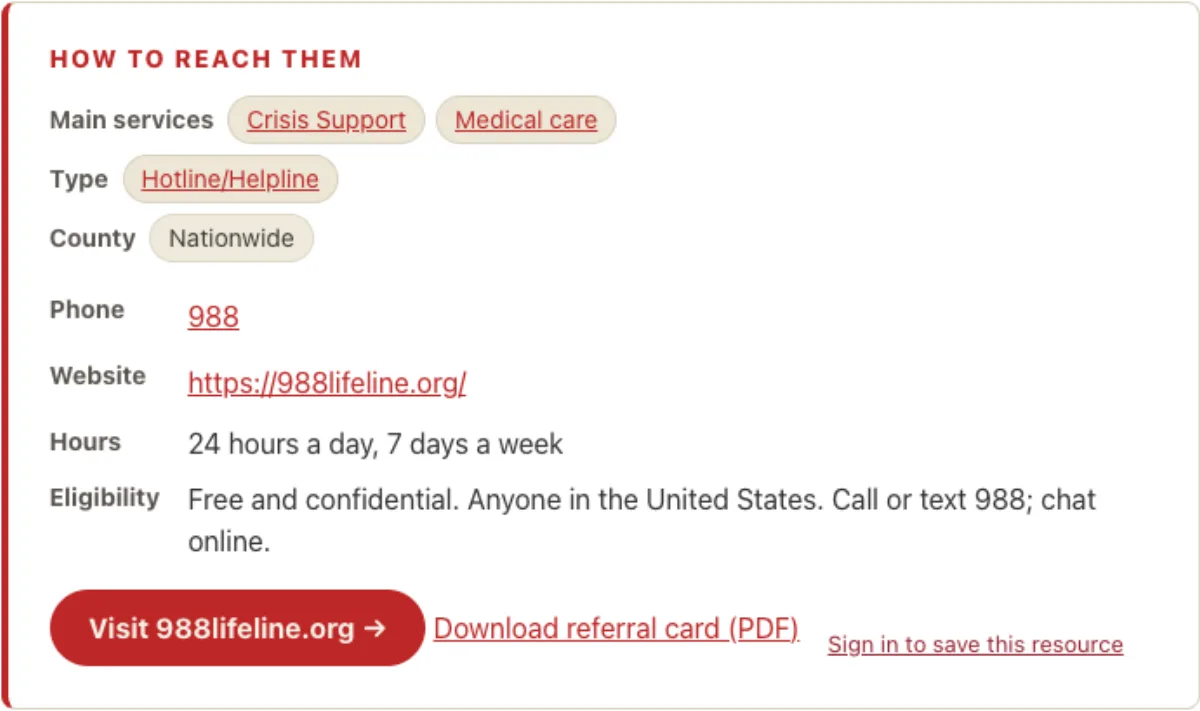
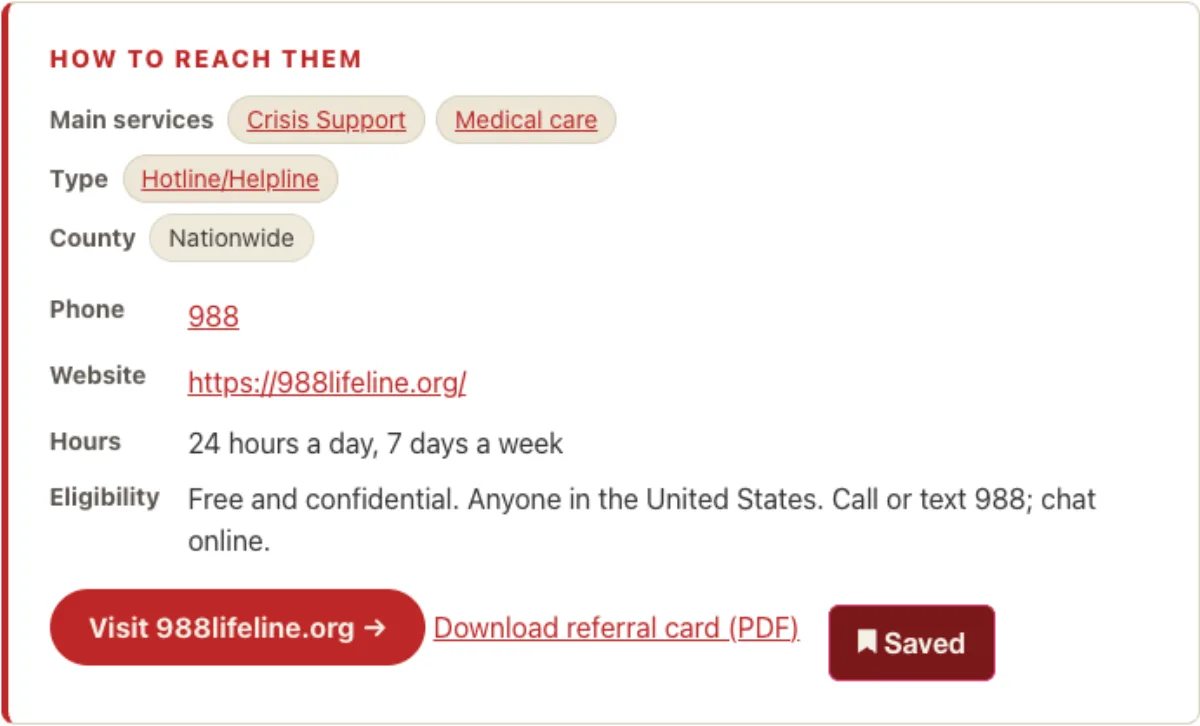
- Each result shows what the program does and a Next steps box with its phone number and website. Choose See next steps for the full page, with hours, eligibility and a printable referral card.
- Can’t find it? Choose Request a resource and a team member will match you.
Save and share a listing
- On any program card or page, choose Save. The button turns to Saved. (Sign in first; the button says so if you are not.)
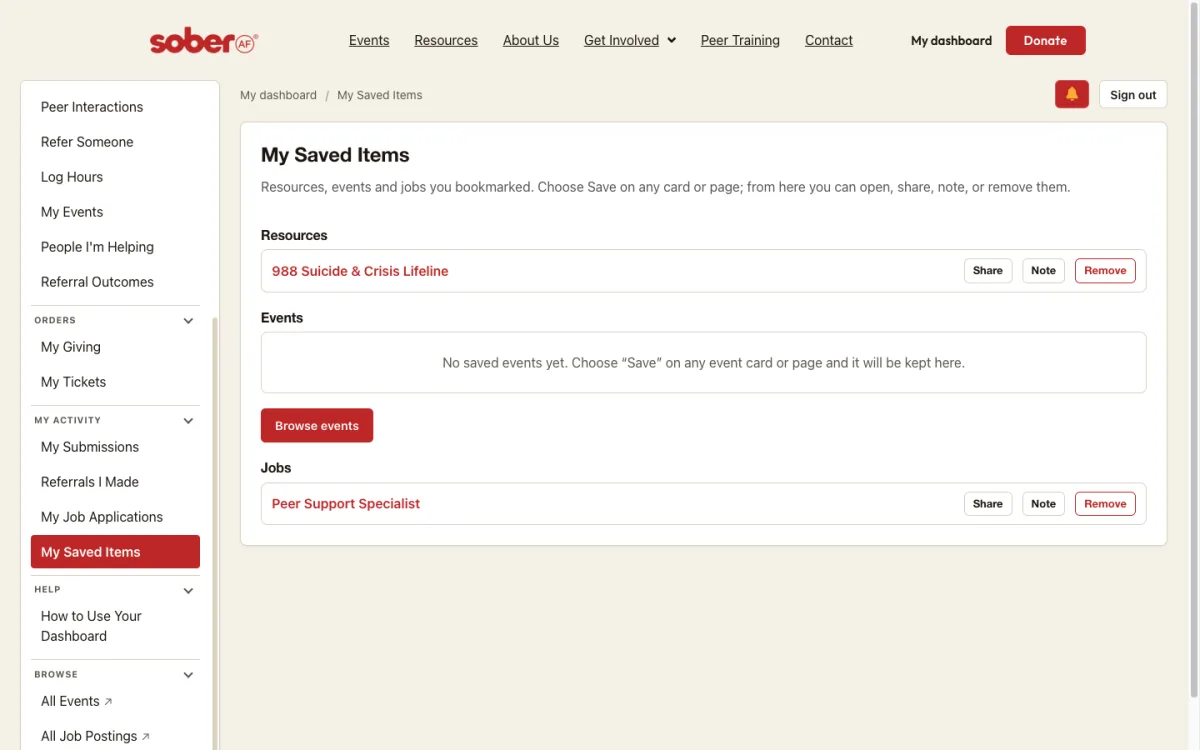
- Open your dashboard and choose My Saved Items. Everything you saved is listed by kind: resources, events, jobs.
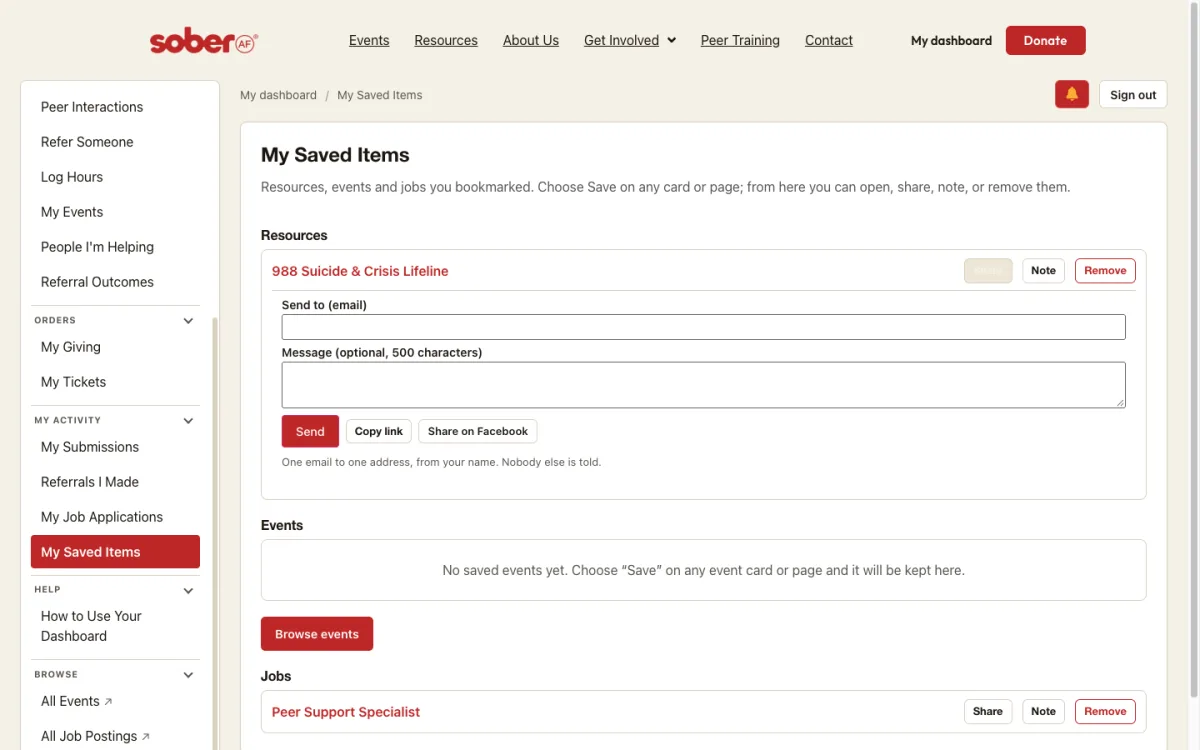
- Choose Share beside a saved program, type one email address and an optional message, and choose Send. One email goes to that address, from your name. Copy link and Share on Facebook are there too.
Refer someone to a program
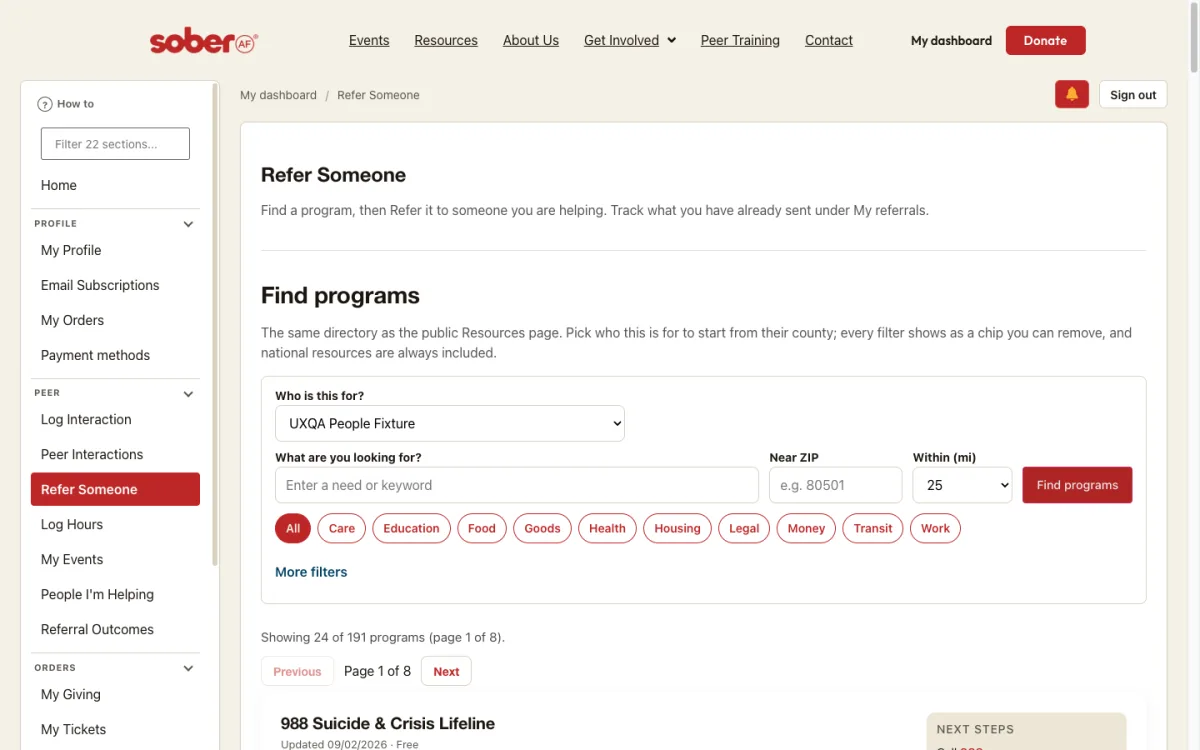
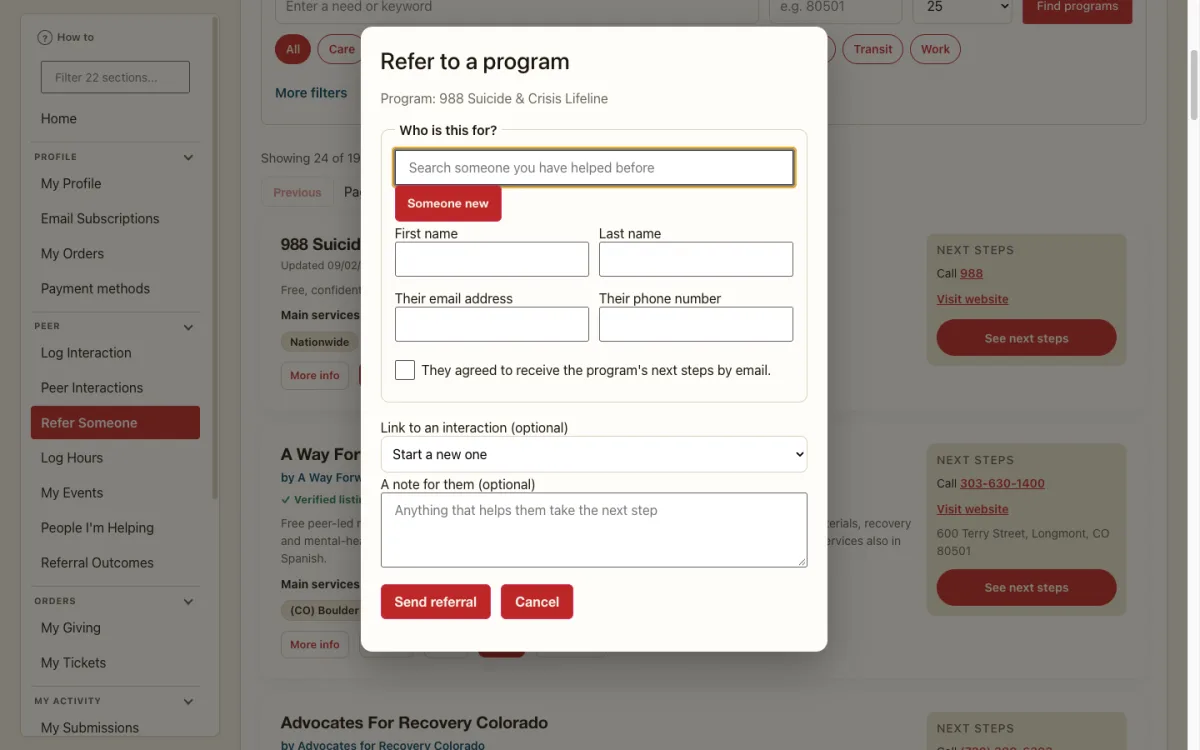
- Open your dashboard. Under Peer, choose Refer Someone. Under Who is this for?, pick the person you are helping; the search starts from their county.
- Search or filter the programs and choose Refer on the right card.
- In the Refer to a program window, confirm who it is for (search someone you have helped before, or enter someone new), tick that they agreed to receive the program’s next steps by email, add a note if you like, and choose Send referral.
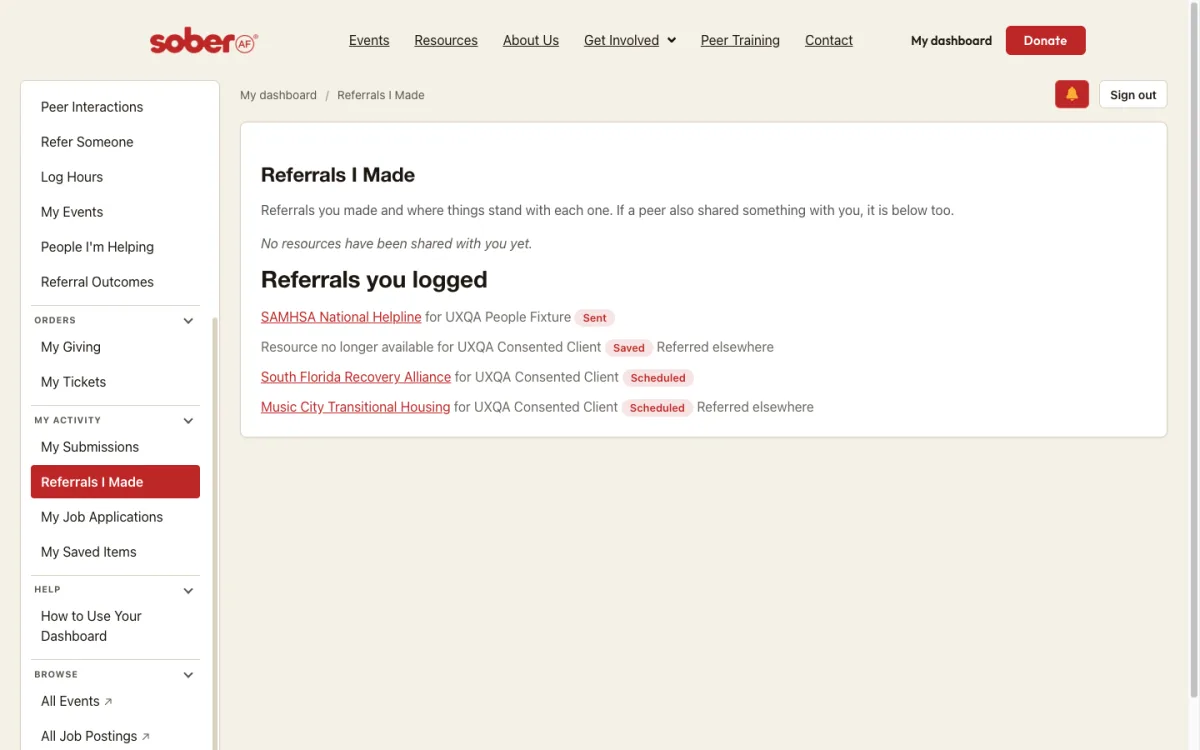
- They receive an email with the program’s details and one-click buttons to say how it went. Your referral is listed under My referrals on the same page and under Referrals I Made, with its status: sent, saved, scheduled, recorded.
Follow up on your referrals
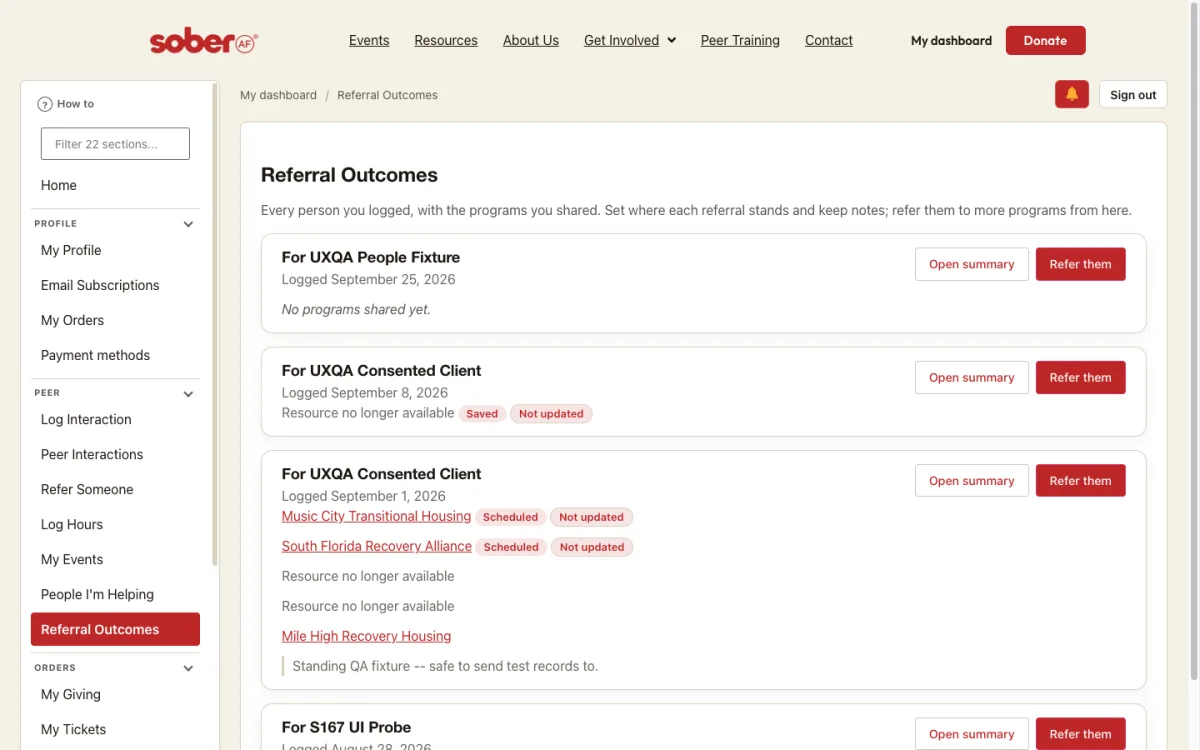
- Open your dashboard. Under Peer, choose Referral Outcomes. Every person you logged is listed with the programs you shared and a status pill for each.
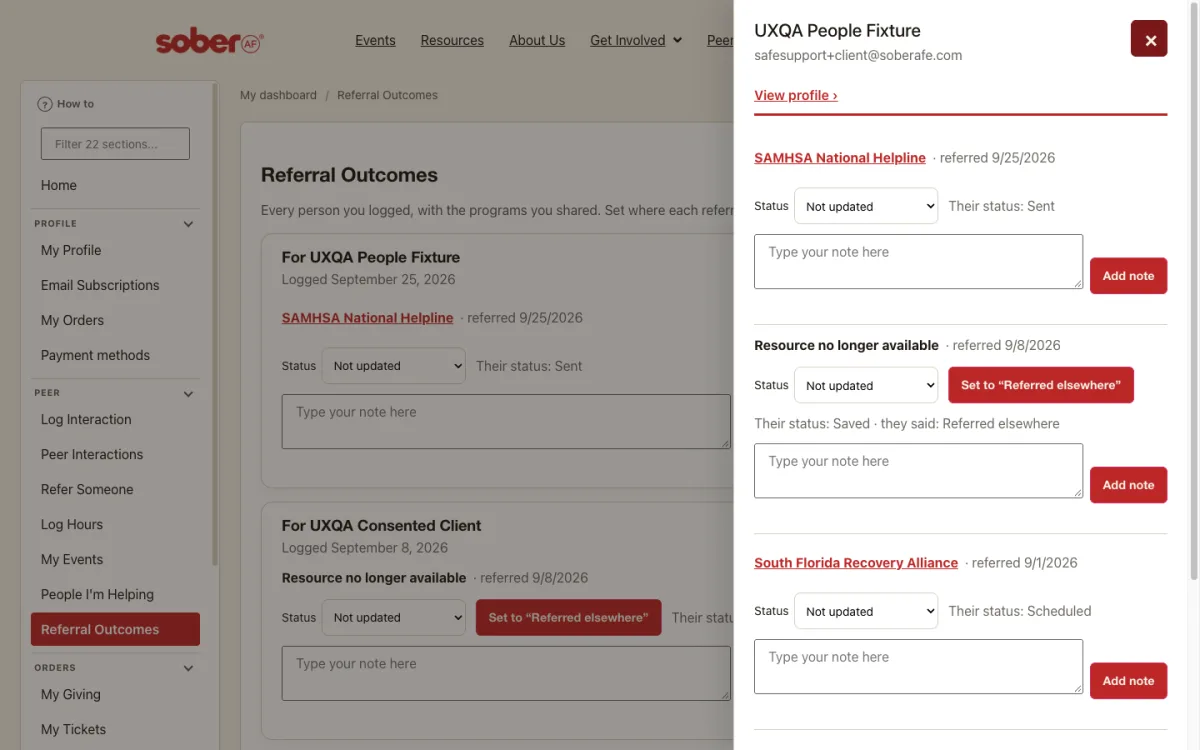
- Set a referral’s Status to where things stand and add a note. The person sees your status next to their own.
- Choose Refer them to send the same person another program, or Open summary for their full record.
Resources shared with me
- When someone refers you to a program, you get an email from S.AF.E with the program’s phone, website, hours and who it serves. If you did not have an account, the email tells you how to sign in.
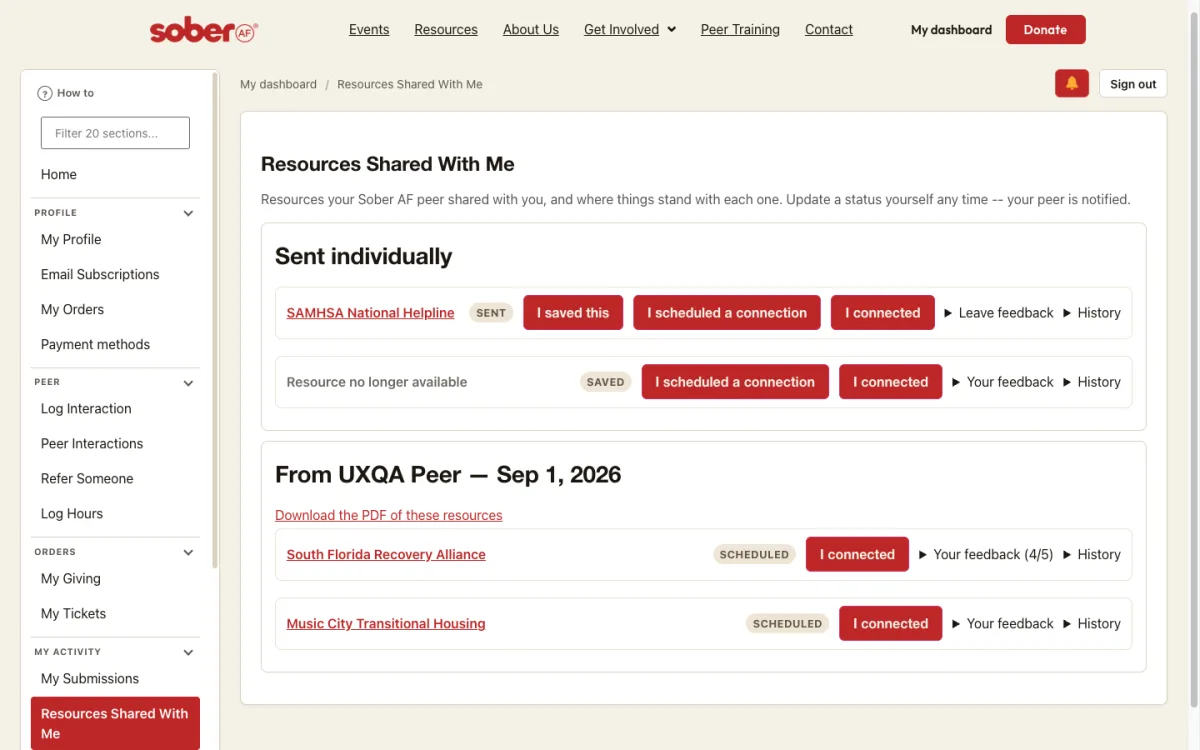
- Sign in and open your dashboard. Under My Activity, choose Resources Shared With Me. Each program shows its status and three buttons: I saved this, I scheduled a connection, I connected. The person who referred you is told when you press one.
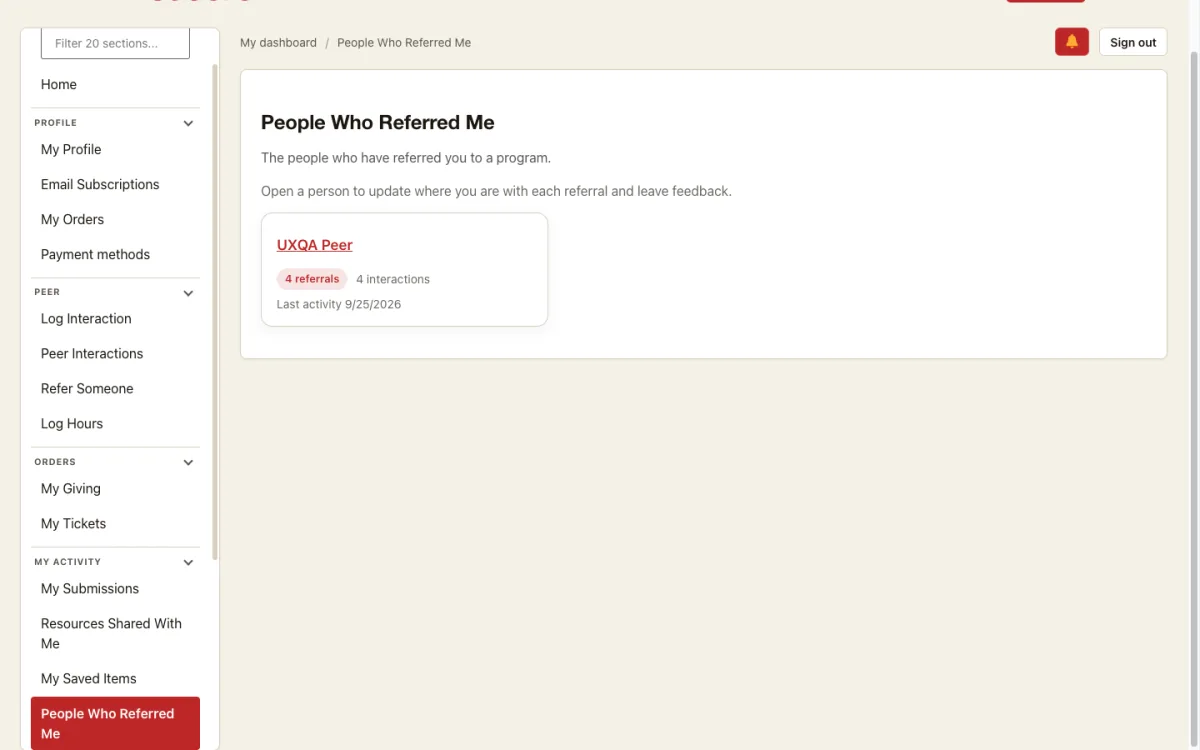
- People Who Referred Me lists everyone who sent you something. A referral with several programs also has a PDF you can download.
Leave feedback on a referral
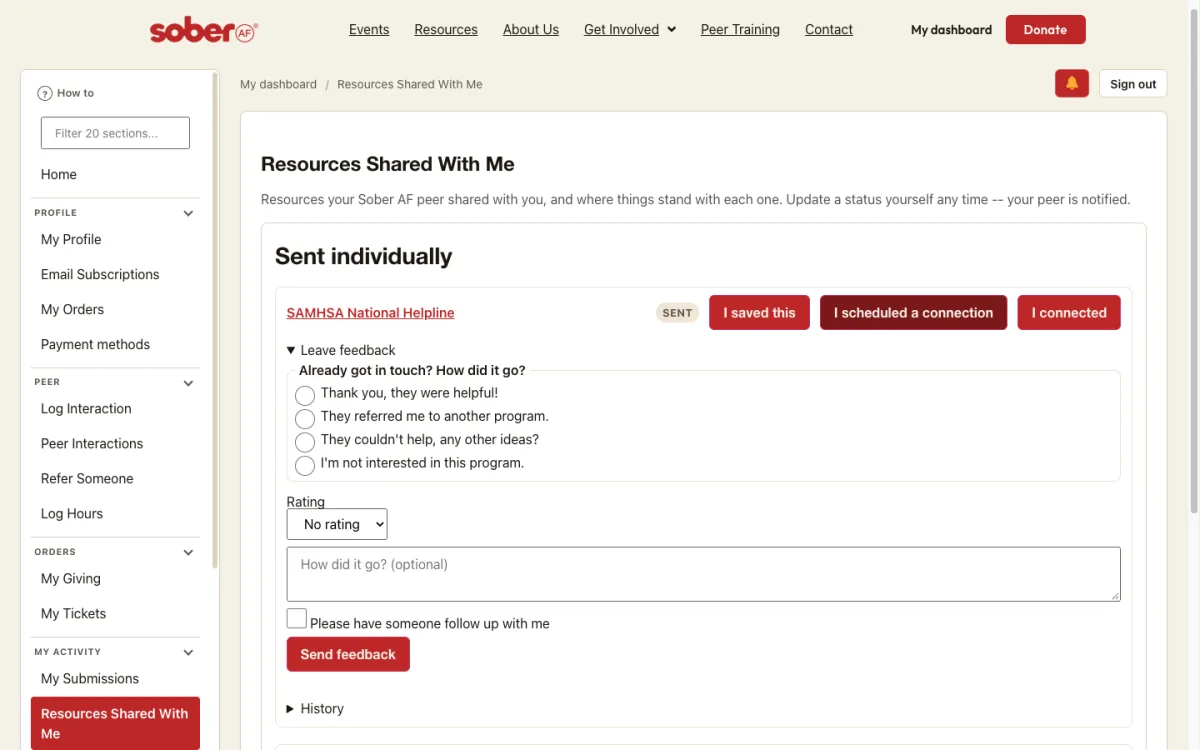
- Under a program in Resources Shared With Me, choose Leave feedback.
- Say how it went (they were helpful, they referred you elsewhere, they could not help, you are not interested), add a rating and a comment if you like.
- Tick Please have someone follow up with me if you want a call, then choose Send feedback. The one-click buttons in the email open this same form with your answer filled in.
Review a submitted resource
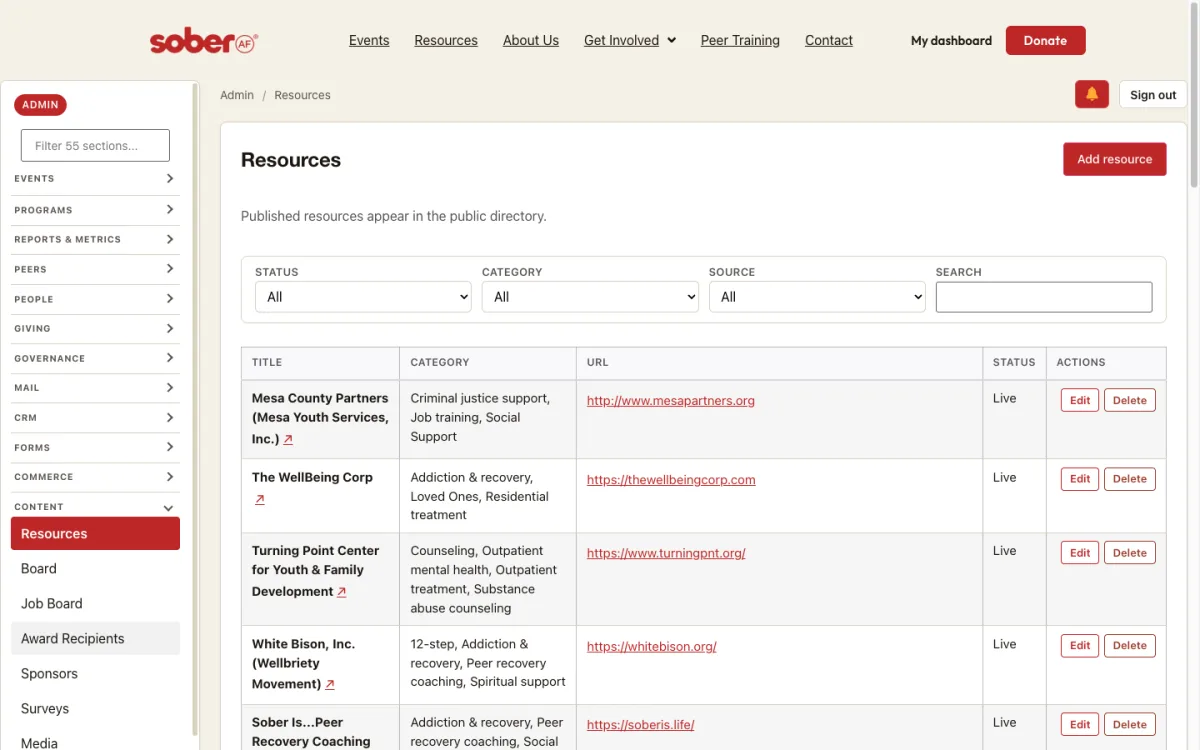
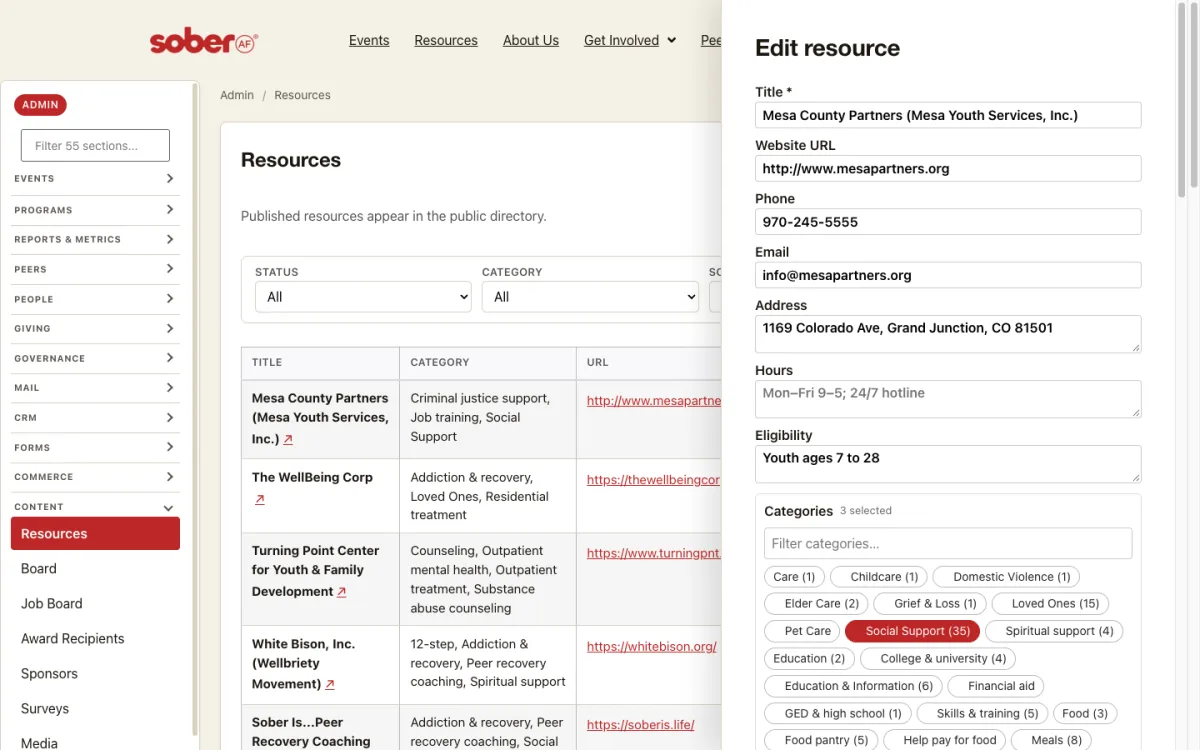
- Open the admin dashboard. Under Content, choose Resources. The list shows every listing with its category, URL and status; set Status to Pending review to see what is waiting.
- Choose Edit on a row to open the drawer: title, website, phone, email, address, hours, eligibility and the category chips. Save publishes the change.
- Below the list, Company self-service proposals shows edits companies sent through their own link, current and proposed side by side; Claims & suggested edits and Resource requests wait there too. Nothing is live until you approve it.
Program oversight
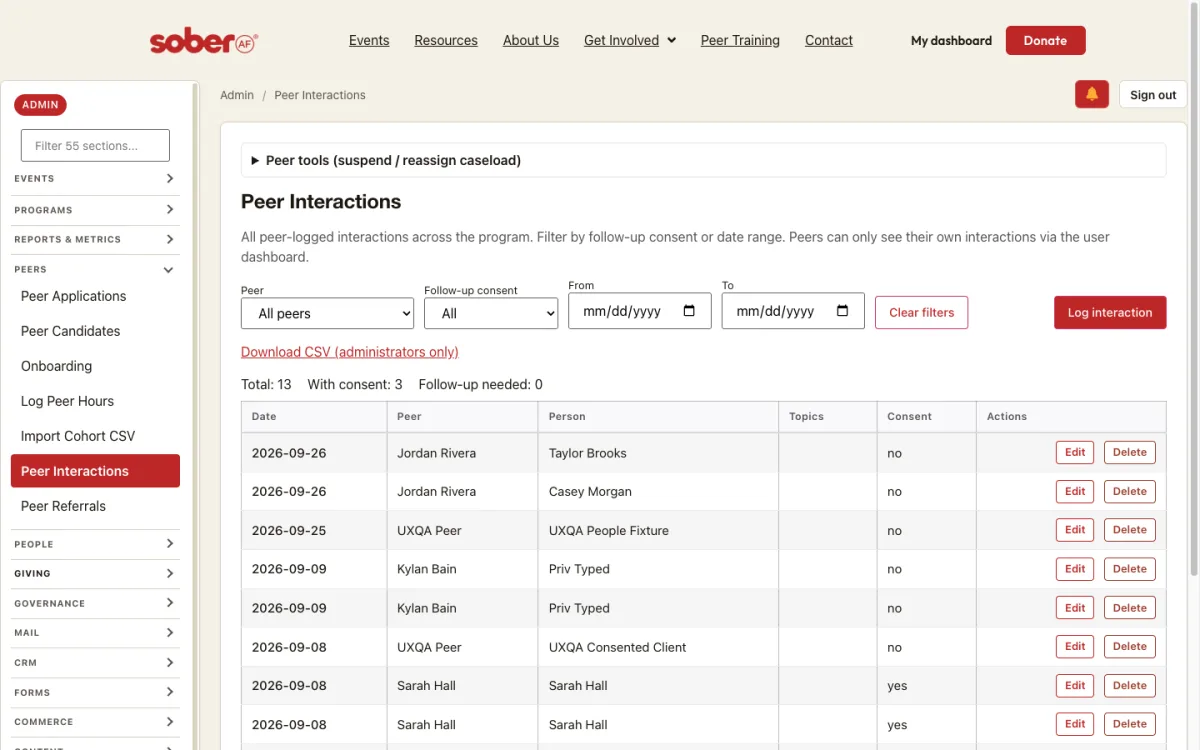
- Open the admin dashboard. Under Peers, choose Peer Interactions. Every peer-logged interaction is listed with the peer, the person, consent and actions; filter by peer, consent or date. Peer tools above the list suspends a peer or reassigns a caseload.
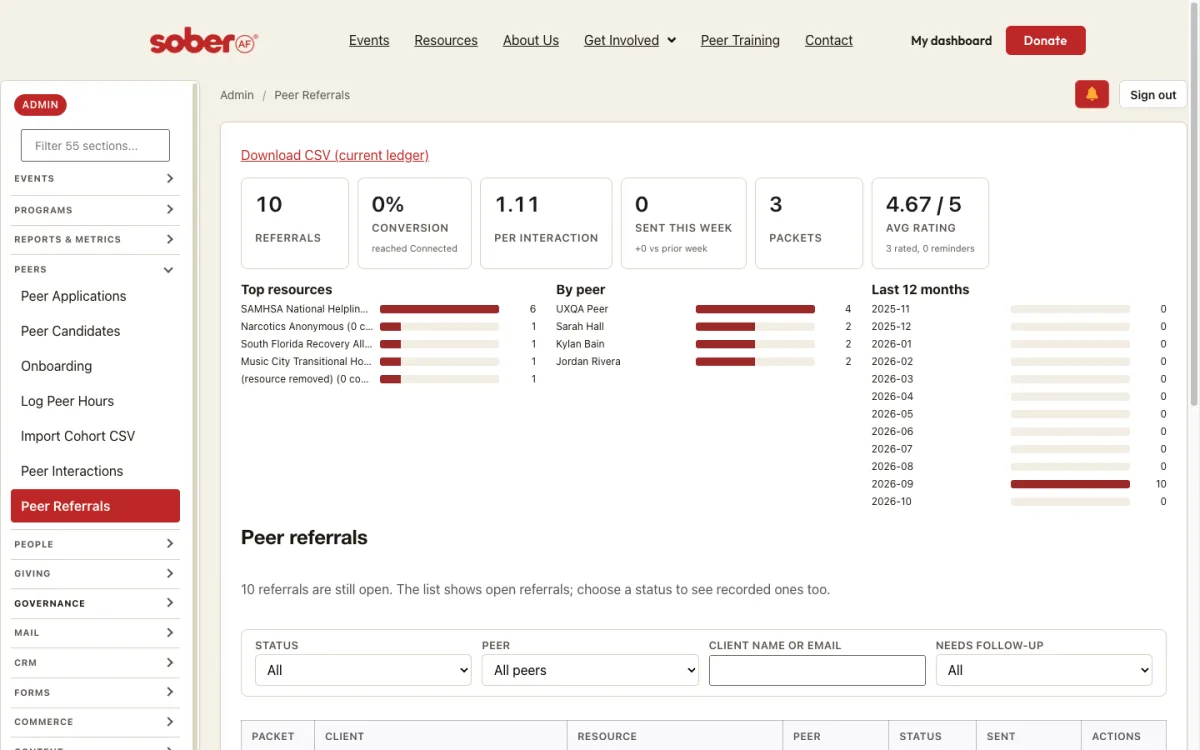
- Choose Peer Referrals for the summary tiles (referrals, conversion, per interaction, sent this week, packets, average rating), the top resources, the per-peer counts and the twelve-month trend.
- Below the tiles, the referrals list filters by status, peer, client and reminder requests. Download CSV exports the current ledger (administrators only).
More help
Questions? Email safeevents@soberafe.com.